
Visitors rarely tell you what they were looking for, but their clicks do. Two kinds of clicks are especially useful: dead clicks, which land on something that is not clickable, such as a headline, photo, or line of text, and rage clicks, which are several fast clicks in the same spot, usually because something did not respond the way the visitor expected.
This article covers dead space and rage clicks in CrazyEgg reports, including how to spot them and how to decide what visitors were trying to do.
💡 Quick answers
- What is dead space? Clicks on areas that are not clickable, such as plain text or an image with no link.
- What are rage clicks? Repeated rapid clicks in one spot, often from frustration.
- What do they mean? Visitors are showing what they want. See Understanding dead space and rage clicks.
- Where are they found? In the heatmap, the overlay report, and the summary measures beside the heatmap report.
Before you start
This article is part of the Finalsite + CrazyEgg series in Finalsite Support. Looking for another Finalsite article? Check out the full set:
- Website insights with CrazyEgg
- Finalsite + CrazyEgg: Get started and understand how it works
- Finalsite + CrazyEgg: Read and analyze a heatmap report
- Finalsite + CrazyEgg: Read and analyze a scrollmap report
- Finalsite + CrazyEgg: Spot dead space and rage clicks (this article)
- Finalsite + CrazyEgg: Adjust pages to guide visitor attention
- Finalsite + CrazyEgg: Continue to monitor your user behavior
- Finalsite + CrazyEgg FAQs
In this article
Understand dead space and rage clicks
Dead space is any area of a page where visitors click but nothing happens, such as plain text, an image with no link, or empty space beside a button. A click there is a dead click. Rage clicks are repeated, rapid clicks in the same spot. They often signal frustration: the visitor expected something to happen and it did not.
Both matter because a standard click report only shows clicks that worked. Dead clicks and rage clicks show what visitors tried to do and could not. For website creators, that makes them a direct line to what visitors expect from a page, including text they want to be a link, buttons that are harder to click than they look, and elements that are slow or unclear.
With these reports you can find the spots on a page where visitors get stuck, decide what they were trying to do, and make a small change, such as adding a link, enlarging a clickable area, or relabeling a button. After the change, create a new heatmap and compare it with the earlier one to see whether the clicks went where you wanted.
Find them in reports
In the overlay report, choose the Both view to see dead clicks next to active clicks, and look for groups of each. The heatmap report also lists rage clicks and dead clicks among its summary measures.
Decide what visitors wanted
| Signal | What it may mean | What to try |
|---|---|---|
| Clicks on a headline or sentence that is not a link | Visitors want more on that topic. | Link the text to the matching page. |
| Clicks just outside a button or link | The clickable area is smaller than it looks. | Make the label, image, and surrounding area all clickable. |
| Repeated clicks on an element | The element is slow to respond or unclear. | Check that it works and that its label says what happens next. |
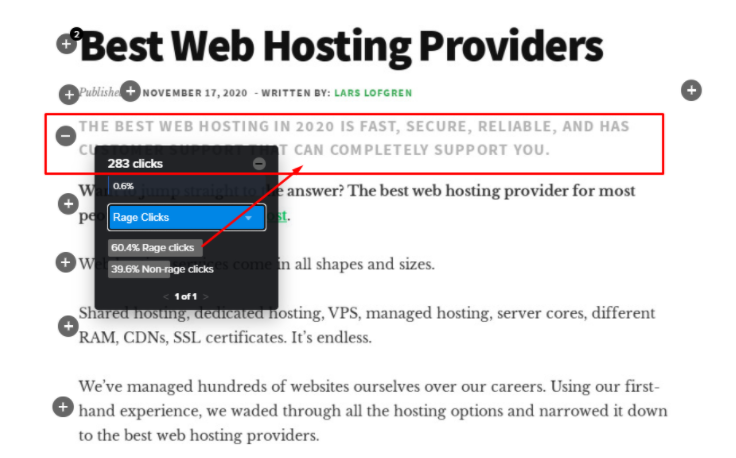
CrazyEgg shares an example where visitors clicked a sentence about common problems more than a paragraph that held a real link. Turning that sentence into a link increased click-through to the article below it.
Real-world scenarios
- Visitors click a headline that is not a link. The heatmap shows a cluster of clicks on plain text. Turning it into a link gives visitors the path they expected.
Still have questions about CrazyEgg?
- Check out the rest of our CrazyEgg articles (linked at the top of this article) and Finalsite's Training Portal for more resources on how to utilize best practices with your CrazyEgg setup.
- Talk with your Client Success Manager or email clientsuccess@finalsite.com for options on consultation through Finalsite Advantage.
- Start a conversation with CrazyEgg at support@crazyegg.com for more help!
Comments
Please Sign in to leave a comment if you don't see the comment box below.